
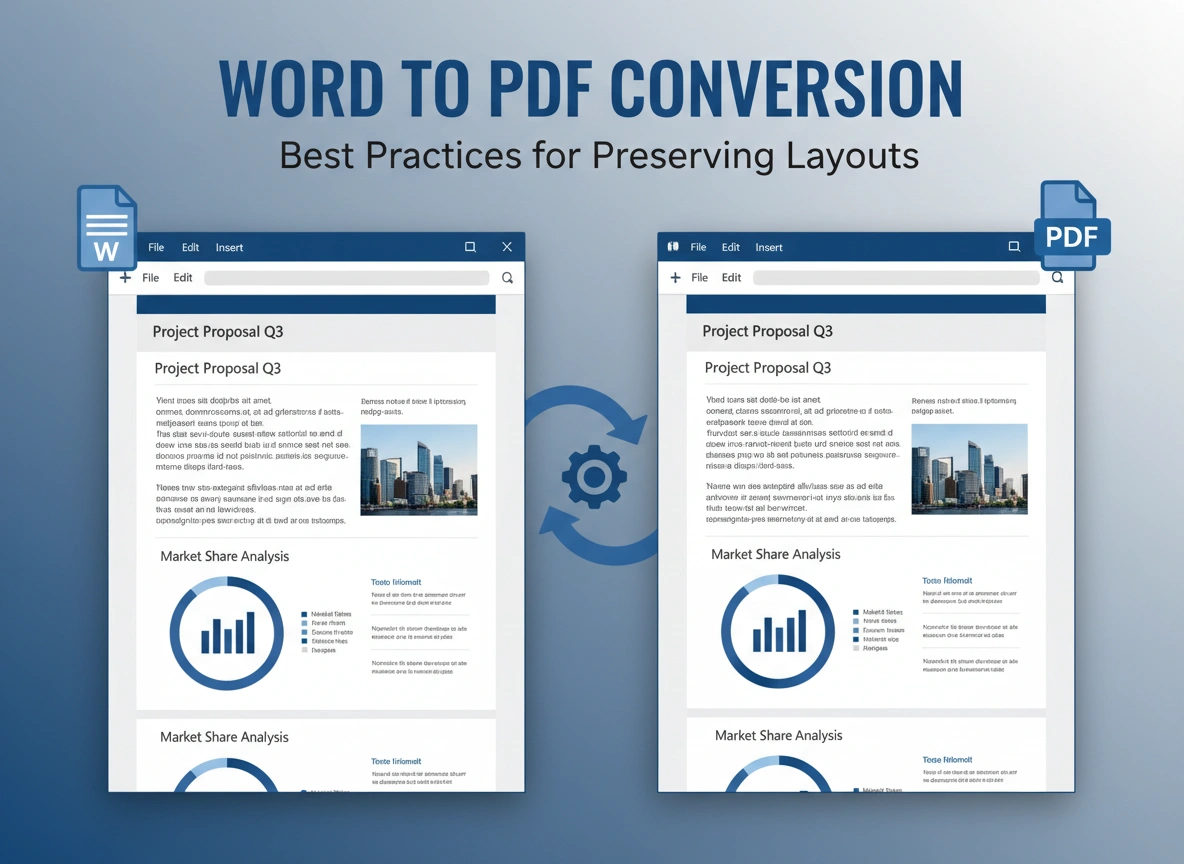
Imagine spending hours perfecting a report. You’ve aligned every image, selected the perfect fonts, and meticulously adjusted the margins. You hit “Save as PDF” to share your masterpiece with a client, but when you open the file, chaos greets you. Images have jumped to the next page, fonts have reverted to basic defaults, and your beautiful tables are a garbled mess.
This scenario is all too common. While converting Microsoft Word documents to PDF is a daily task for millions of professionals, doing it without destroying your formatting is an art form. The Portable Document Format (PDF) is the gold standard for sharing documents because it locks in visual elements, ensuring they look the same on any device. However, the bridge between a dynamic Word processor and a static PDF file is often shaky.
This guide explores why layout preservation matters, identifies the common pitfalls that ruin formatting, and provides a comprehensive set of best practices to ensure your Word-to-PDF conversions are flawless every time.
Why Layout Integrity is Non-Negotiable
A document’s layout is not just about aesthetics; it is about communication. The way information is presented dictates how easily it is consumed and understood.
When layouts break during conversion, professionalism takes a hit. A proposal with misaligned text suggests a lack of attention to detail. A resume with broken formatting might get rejected by Applicant Tracking Systems (ATS). Legal contracts with shifting paragraphs can lead to ambiguity. Preserving the exact visual structure of your original document ensures that your message is received exactly as you intended, maintaining your credibility and the document’s utility.
Common Challenges in Conversion
Before diving into the solutions, it helps to understand why these errors happen. Microsoft Word is a flow-oriented program. It constantly recalculates line breaks and page endings based on the printer driver, page size, and installed fonts. PDFs, on the other hand, are fixed-layout formats. They are digital paper.
The friction occurs when the dynamic nature of Word tries to translate into the static nature of PDF. The most frequent issues include:
- Font Substitution: If the PDF creator doesn’t embed the font, the recipient’s computer substitutes it with a “close match,” altering line spacing and flow.
- Image Displacement: Images anchored incorrectly “float” to unintended positions.
- Table Breaches: Complex tables often bleed off the margins or split awkwardly across pages.
- Header and Footer Glitches: Page numbers or logos disappear or overlap with body text.
Best Practices for Flawless Conversion
Achieving a perfect conversion starts long before you click “Save.” It begins with how you structure your Word document.
1. Master Your Fonts
Fonts are the most common culprit for layout shifts. If you use a font that isn’t standard on other systems, and you don’t embed it, your PDF will look different on every device.
Embed Fonts in the File
Microsoft Word has a built-in feature to prevent font substitution.
- Go to File > Options > Save.
- Check the box for “Embed fonts in the file.”
- Choose “Embed only the characters used in the document” to keep file size manageable, or embed the full font set for maximum editing capability later.
Stick to Standard Fonts
When possible, use universal typefaces like Arial, Calibri, Times New Roman, or Helvetica. These are “web-safe” and render consistently across almost all PDF readers and operating systems.
2. Control Your Images and Objects
Images in Word love to move. By default, Word often treats images as “In Line with Text,” which is stable but restrictive. However, when users switch to “Wrap Text” options, things get tricky.
Use Proper Anchoring
When you place an image, ensure you anchor it correctly to the nearest paragraph.
- Select the image.
- Go to Layout Options (the small icon that appears near the selected image).
- Select “Fix position on page” if you want the image to stay exactly where it is regardless of text changes, or learn to use the anchor symbol to lock it to a specific paragraph.
Flatten Transparency
Complex graphical elements with transparency (shadows, opacity) can render poorly in PDF. Sometimes they appear as black boxes or pixelated blobs. If your document is image-heavy, consider compressing images slightly or flattening complex layers in an external image editor before pasting them into Word.
3. Tame Your Tables
Tables are notoriously difficult to convert without issues, especially if they span multiple pages.
Avoid “Drawing” Tables
Don’t use the “Draw Table” tool if you can avoid it. Instead, use Insert > Table. The grid structure is cleaner and translates better to PDF code.
Check Page Breaks
Right-click your table and select Table Properties. Under the Row tab, uncheck “Allow row to break across pages” if you want to keep data cells intact. This forces the entire row to the next page if it doesn’t fit, preventing data from being sliced in half.
4. Use Styles, Not Manual Formatting
This is the golden rule of professional Word processing. Do not use the spacebar to align text, and avoid hitting “Enter” repeatedly to move to a new page.
- For Page Breaks: Use
Ctrl + Enter(Insert Page Break). This ensures the new page starts exactly where you want it, regardless of how the previous text reflows. - For Spacing: Use the Paragraph settings to add “Space After” or “Space Before” paragraphs. Manual empty lines often disappear or expand unpredictably during conversion.
- For Headings: Use Word’s built-in Heading Styles. This not only ensures consistent formatting but also automatically generates PDF bookmarks, making your document accessible and easy to navigate.
5. Check Your Margins and Paper Size
It sounds simple, but a mismatch in paper size settings causes significant layout issues.
Ensure your Word document is set to the standard size for your region (Letter for US, A4 for Europe/International). If you design a document in A4 and convert it using a “Letter” sized PDF printer setting, your margins will shift, and bottom content may be cut off.
Go to Layout > Size to verify your canvas before starting your design.
Choosing the Right Conversion Method
How you convert the file is just as important as how you build it.
The “Save As” Method (Best for Simple Docs)
In modern versions of Word (2016 and later), the built-in File > Save As > PDF function is robust. It uses Microsoft’s native engine to translate the XML data of the Word file directly into PDF. This is usually sufficient for text-heavy documents.
The “Print to PDF” Method (Best for Complex Layouts)
If “Save As” is messing up your images, try “Printing” the file.
- Go to File > Print.
- Select “Microsoft Print to PDF” (Windows) or “Save as PDF” (Mac) as your printer.
- This forces the document through a virtual printer driver, effectively “flattening” the visual elements exactly as they would appear on paper. This often resolves stubborn image displacement issues.
Professional PDF Software (Best for Critical Documents)
For high-stakes documents, rely on dedicated software like Adobe Acrobat Pro. These tools install a dedicated Word plugin (the “Acrobat Ribbon”). This plugin offers advanced settings, such as converting document information, creating tagged PDFs for accessibility, and handling high-resolution color profiles that Word’s native converter might miss.
Ensuring Compatibility Across Devices
The final test of a PDF is portability. A layout that looks good on a desktop might be unreadable on a mobile phone if the file size is massive or the resolution is weird.
- Optimize File Size: Large, high-res images can bloat a PDF, causing slow rendering on tablets. Use the “Compress Images” feature in Word prior to conversion, or use a PDF optimizer tool afterward to reduce file size without visibly degrading quality.
- Verify Accessibility: Use the “Check Accessibility” tool in Word. It flags issues like missing Alt Text or confusing reading orders. An accessible document is generally a cleaner document code-wise, which leads to better conversion stability.
Summary
Preserving your layout during Word-to-PDF conversion isn’t about luck; it’s about preparation. By moving away from manual formatting habits—like using spaces for alignment—and embracing structural tools like Styles, Anchors, and Font Embedding, you gain control over the final output.
Key Takeaways:
- Structure First: Use Page Breaks and Paragraph spacing instead of the Enter key.
- Embed Fonts: Always embed fonts to prevent substitution errors.
- Lock Images: Anchor images properly to prevent them from floating.
- Choose the Right Tool: Know when to use “Save As” versus “Print to PDF” or Adobe Acrobat.
By following these best practices, you ensure that the professional polish you apply in Word remains intact, delivering a pristine, stable document to every client, colleague, or stakeholder.
Please visit website for more info
